Pande使用:record与replay

record(记录)与replay(回放)是Panda的两个重要功能,本文在完成这两个功能的自动化处理的同时,还简单使用到了Panda的插件功能。
主要基于以下教程,但在复现过程中会遇到一些原文中没有提到的问题

Building a custom malware sandbox with PANDA - Part 1

环境准备


  • 首先需要一个windows镜像,并生成对应的qcow2文件
    # Create a working directory
    mkdir sandbox_base
    cd sandbox_base

    # Download the disk image from Microsofts' website
    # (URL from https://developer.microsoft.com/en-us/microsoft-edge/tools/vms/)
    wget https://az792536.vo.msecnd.net/vms/VMBuild_20150916/VirtualBox/IE8/IE8.Win7.VirtualBox.zip

    # Unzip the virtualbox zip
    unzip IE8.Win7.VirtualBox.zip

    # Untar the .ova
    tar -xvf IE8\ -\ Win7.ova

    # Create a qcow image from the .vmdk file.
    ## First install qemu utils
    sudo apt-get install qemu-utils

    ## Then create our image
    qemu-img convert -O qcow2 IE8\ -\ Win7-disk1.vmdk IE8_win7_disk1.qcow2
    chmod +x ./IE8_win7_disk1.qcow2

    ## Clean up some of the unnecessary files
    rm IE8\ -\ Win7-disk1.vmdk
    rm IE8\ -\ Win7.ova

基本使用


record记录

运行这个脚本,我们得到一个 qcow2 图像,可以在这个qcow2上运行panda

panda/build/i386-softmmu/qemu-system-i386 IE8-win7-disk1.qcow2
#运行此命令可以启动windows镜像

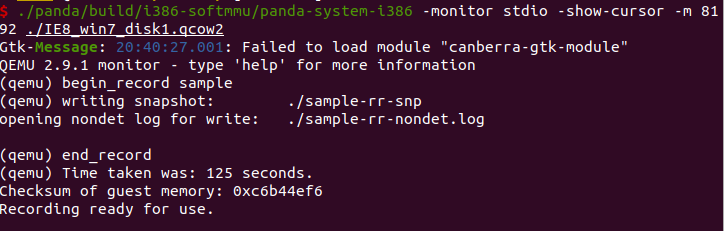
下一步就是确保可以记录和回放刚才的执行,如上一篇提到的,可以使用 PANDA 命令begin_recordend_record完成这一功能

运行:

./panda/build/i386-softmmu/panda-system-i386 -monitor stdio -show-cursor -m 8192 ./IE8_win7_disk1.qcow2

产生两个文件:

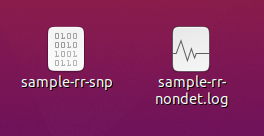
sample-rr-nondet.logsample-rr-snp 是 PANDA 创建的用于重播执行的文件。

  • sample-rr-snp 文件包含记录开始时的内存快照
  • sample-rr-nondet.log 文件包含重放执行所需的 CPU 输入。

replay回放

最后,为了回放执行,我们使用 PANDA 的 qemu 命令行参数 -replay NAME。 回放我们刚刚记录的执行的过程如下面的输出所示。

输出:

$ ./panda/build/i386-softmmu/panda-system-i386 -monitor stdio -show-cursor -m 8192 -replay sample                                                          
QEMU 2.9.1 monitor - type 'help' for more information
(qemu) loading snapshot
... done.
opening nondet log for read : ./sample-rr-nondet.log
./sample-rr-nondet.log: 12257883474 instrs total.
sample: 122578839 ( 1.00%) instrs. 3.03 sec. 2.09 GB ram.
sample: 245157670 ( 2.00%) instrs. 5.30 sec. 2.16 GB ram.
sample: 367736508 ( 3.00%) instrs. 7.08 sec. 2.21 GB ram.
sample: 490315339 ( 4.00%) instrs. 8.93 sec. 2.26 GB ram.
sample: 612894177 ( 5.00%) instrs. 10.51 sec. 2.28 GB ram.
sample: 735473011 ( 6.00%) instrs. 12.59 sec. 2.30 GB ram.
sample: 858051847 ( 7.00%) instrs. 14.14 sec. 2.31 GB ram.
sample: 980630679 ( 8.00%) instrs. 15.67 sec. 2.32 GB ram.
sample: 1103209513 ( 9.00%) instrs. 17.13 sec. 2.35 GB ram.
sample: 1225788351 ( 10.00%) instrs. 19.25 sec. 2.36 GB ram.
sample: 1348367183 ( 11.00%) instrs. 21.67 sec. 2.39 GB ram.
sample: 1470946025 ( 12.00%) instrs. 23.74 sec. 2.42 GB ram.
sample: 1593524854 ( 13.00%) instrs. 25.30 sec. 2.43 GB ram.
sample: 1716103692 ( 14.00%) instrs. 26.59 sec. 2.44 GB ram.
sample: 1838682533 ( 15.00%) instrs. 28.35 sec. 2.48 GB ram.
sample: 1961261358 ( 16.00%) instrs. 30.05 sec. 2.49 GB ram.
sample: 2083840197 ( 17.00%) instrs. 31.73 sec. 2.50 GB ram.
sample: 2206419030 ( 18.00%) instrs. 33.05 sec. 2.50 GB ram.
sample: 2328997867 ( 19.00%) instrs. 34.10 sec. 2.51 GB ram.
sample: 2451576695 ( 20.00%) instrs. 34.86 sec. 2.51 GB ram.
sample: 2574155533 ( 21.00%) instrs. 35.62 sec. 2.51 GB ram.
sample: 2696734368 ( 22.00%) instrs. 36.34 sec. 2.51 GB ram.
sample: 2819313201 ( 23.00%) instrs. 37.15 sec. 2.51 GB ram.
sample: 2941892037 ( 24.00%) instrs. 37.90 sec. 2.51 GB ram.
sample: 3064470870 ( 25.00%) instrs. 38.64 sec. 2.51 GB ram.
sample: 3187049706 ( 26.00%) instrs. 39.37 sec. 2.51 GB ram.
sample: 3309628543 ( 27.00%) instrs. 40.14 sec. 2.53 GB ram.
sample: 3432207378 ( 28.00%) instrs. 40.90 sec. 2.53 GB ram.
sample: 3554786210 ( 29.00%) instrs. 41.67 sec. 2.53 GB ram.
sample: 3677365047 ( 30.00%) instrs. 42.44 sec. 2.53 GB ram.
sample: 3799943884 ( 31.00%) instrs. 43.20 sec. 2.53 GB ram.
sample: 3922522712 ( 32.00%) instrs. 44.01 sec. 2.53 GB ram.
sample: 4045101555 ( 33.00%) instrs. 44.80 sec. 2.53 GB ram.
sample: 4167680384 ( 34.00%) instrs. 46.56 sec. 2.54 GB ram.
sample: 4290259220 ( 35.00%) instrs. 47.72 sec. 2.54 GB ram.
sample: 4412838054 ( 36.00%) instrs. 48.71 sec. 2.54 GB ram.
sample: 4535416896 ( 37.00%) instrs. 50.03 sec. 2.55 GB ram.
sample: 4657995732 ( 38.00%) instrs. 51.02 sec. 2.55 GB ram.
sample: 4780574563 ( 39.00%) instrs. 52.02 sec. 2.55 GB ram.
sample: 4903153392 ( 40.00%) instrs. 53.05 sec. 2.56 GB ram.
sample: 5025732229 ( 41.00%) instrs. 54.11 sec. 2.56 GB ram.
sample: 5148311061 ( 42.00%) instrs. 55.59 sec. 2.57 GB ram.
sample: 5270889895 ( 43.00%) instrs. 57.61 sec. 2.58 GB ram.
sample: 5393468732 ( 44.00%) instrs. 59.63 sec. 2.58 GB ram.
sample: 5516047564 ( 45.00%) instrs. 61.49 sec. 2.60 GB ram.
sample: 5638626404 ( 46.00%) instrs. 62.96 sec. 2.62 GB ram.
sample: 5761205244 ( 47.00%) instrs. 63.83 sec. 2.66 GB ram.
sample: 5883784083 ( 48.00%) instrs. 64.33 sec. 2.66 GB ram.
sample: 6006362907 ( 49.00%) instrs. 65.52 sec. 2.66 GB ram.
sample: 6128941737 ( 50.00%) instrs. 67.38 sec. 2.67 GB ram.
sample: 6251520574 ( 51.00%) instrs. 68.85 sec. 2.67 GB ram.
sample: 6374099413 ( 52.00%) instrs. 71.54 sec. 2.68 GB ram.
sample: 6496678244 ( 53.00%) instrs. 73.11 sec. 2.70 GB ram.
sample: 6619257095 ( 54.00%) instrs. 75.17 sec. 2.72 GB ram.
sample: 6741835915 ( 55.00%) instrs. 76.67 sec. 2.75 GB ram.
sample: 6864414747 ( 56.00%) instrs. 78.02 sec. 2.77 GB ram.
sample: 6986993585 ( 57.00%) instrs. 79.43 sec. 2.78 GB ram.
sample: 7109572416 ( 58.00%) instrs. 81.03 sec. 2.79 GB ram.
sample: 7232151255 ( 59.00%) instrs. 81.99 sec. 2.79 GB ram.
sample: 7354730096 ( 60.00%) instrs. 83.04 sec. 2.79 GB ram.
sample: 7477308922 ( 61.00%) instrs. 84.02 sec. 2.79 GB ram.
sample: 7599887756 ( 62.00%) instrs. 85.07 sec. 2.82 GB ram.
sample: 7722466590 ( 63.00%) instrs. 85.93 sec. 2.91 GB ram.
sample: 7845045425 ( 64.00%) instrs. 86.94 sec. 2.92 GB ram.
sample: 7967624263 ( 65.00%) instrs. 89.36 sec. 2.92 GB ram.
sample: 8090203100 ( 66.00%) instrs. 91.36 sec. 2.92 GB ram.
sample: 8212781928 ( 67.00%) instrs. 92.56 sec. 2.93 GB ram.
sample: 8335360763 ( 68.00%) instrs. 93.53 sec. 2.93 GB ram.
sample: 8457939599 ( 69.00%) instrs. 94.50 sec. 2.93 GB ram.
sample: 8580518433 ( 70.00%) instrs. 95.51 sec. 2.93 GB ram.
sample: 8703097273 ( 71.00%) instrs. 97.64 sec. 2.96 GB ram.
sample: 8825676104 ( 72.00%) instrs. 99.93 sec. 2.98 GB ram.
sample: 8948254945 ( 73.00%) instrs. 102.09 sec. 2.98 GB ram.
sample: 9070833775 ( 74.00%) instrs. 103.77 sec. 3.00 GB ram.
sample: 9193412614 ( 75.00%) instrs. 105.20 sec. 3.00 GB ram.
sample: 9315991448 ( 76.00%) instrs. 106.58 sec. 3.00 GB ram.
sample: 9438570277 ( 77.00%) instrs. 108.09 sec. 3.01 GB ram.
sample: 9561149110 ( 78.00%) instrs. 109.48 sec. 3.02 GB ram.
sample: 9683727949 ( 79.00%) instrs. 111.43 sec. 3.03 GB ram.
sample: 9806306784 ( 80.00%) instrs. 113.25 sec. 3.03 GB ram.
sample: 9928885615 ( 81.00%) instrs. 115.41 sec. 3.04 GB ram.
sample: 10051464450 ( 82.00%) instrs. 117.09 sec. 3.06 GB ram.
sample: 10174043284 ( 83.00%) instrs. 119.48 sec. 3.08 GB ram.
sample: 10296622121 ( 84.00%) instrs. 121.13 sec. 3.09 GB ram.
sample: 10419200982 ( 85.00%) instrs. 121.95 sec. 3.09 GB ram.
sample: 10541779795 ( 86.00%) instrs. 122.45 sec. 3.10 GB ram.
sample: 10664358635 ( 87.00%) instrs. 123.53 sec. 3.13 GB ram.
sample: 10786937459 ( 88.00%) instrs. 124.43 sec. 3.14 GB ram.
sample: 10909516309 ( 89.00%) instrs. 125.78 sec. 3.15 GB ram.
sample: 11032095129 ( 90.00%) instrs. 126.66 sec. 3.15 GB ram.
sample: 11154673962 ( 91.00%) instrs. 127.90 sec. 3.16 GB ram.
sample: 11277252798 ( 92.00%) instrs. 128.95 sec. 3.16 GB ram.
sample: 11399831631 ( 93.00%) instrs. 130.46 sec. 3.16 GB ram.
sample: 11522410472 ( 94.00%) instrs. 131.79 sec. 3.17 GB ram.
sample: 11644989304 ( 95.00%) instrs. 133.26 sec. 3.19 GB ram.
sample: 11767568137 ( 96.00%) instrs. 134.75 sec. 3.19 GB ram.
sample: 11890146970 ( 97.00%) instrs. 136.06 sec. 3.20 GB ram.
sample: 12012725817 ( 98.00%) instrs. 137.22 sec. 3.20 GB ram.
sample: 12135304642 ( 99.00%) instrs. 138.58 sec. 3.20 GB ram.
./sample-rr-nondet.log: log is empty.
Time taken was: 143 seconds.
Stats:
RR_INPUT_1 number = 0, size = 0 bytes
RR_INPUT_2 number = 0, size = 0 bytes
RR_INPUT_4 number = 52356, size = 732984 bytes
RR_INPUT_8 number = 263807, size = 4748526 bytes
RR_INTERRUPT_REQUEST number = 41100, size = 575400 bytes
RR_EXIT_REQUEST number = 0, size = 0 bytes
RR_SKIPPED_CALL number = 34033, size = 76861370 bytes
RR_END_OF_LOG number = 1, size = 10 bytes
RR_PENDING_INTERRUPTS number = 0, size = 0 bytes
RR_EXCEPTION number = 0, size = 0 bytes
max_queue_len = 821
Replay completed successfully
Exiting cpu_handle_execption loop

减少分析时间

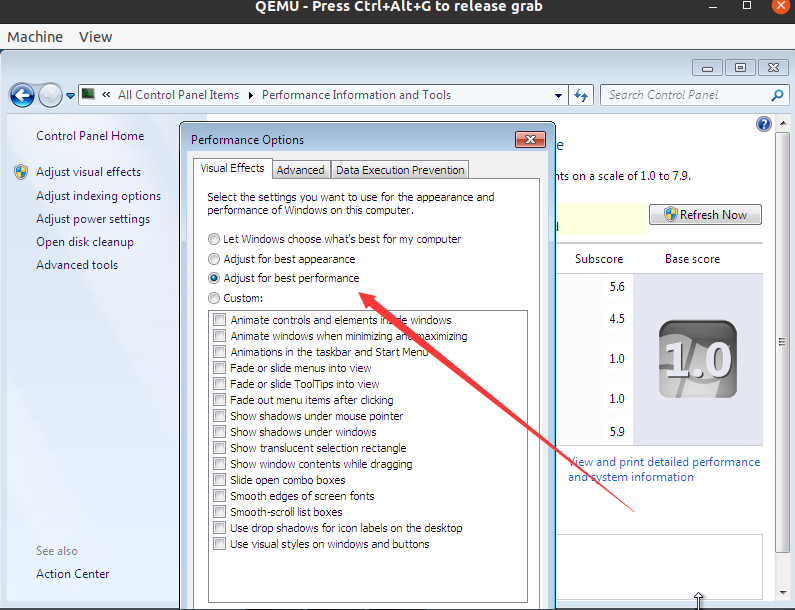
回放仿真是会消耗许多时间,可以在客户系统内将性能提至最优,以达到提高分析速度的效果。以本实验使用的客户系统win7系统为例,在计算机属性内找到如下选项,选择“Adjust for best performance”并保存,即可提高分析速度。

分析特定样本

此时,我们可以使用 PANDA 记录执行并重放它,但是,我们仍然需要一种机制来允许我们记录目标应用程序的执行。目标是拥有一种灵活的方法,允许我们将应用程序从主机环境转移到客户(guest)环境,然后在客户(guest)环境中启动应用程序的执行。此外,我们希望在客户系统内不部署任何脚本或类似内容的情况下执行此操作。

设置适当的快照

首先必须将虚拟机设置为可以轻松地从盒子外面执行我们的应用程序的状态。

方法:在客户系统中打开一个命令提示符,然后保存虚拟机状态。之后通过发送适当的击键从框外与命令提示符交互来利用此快照。

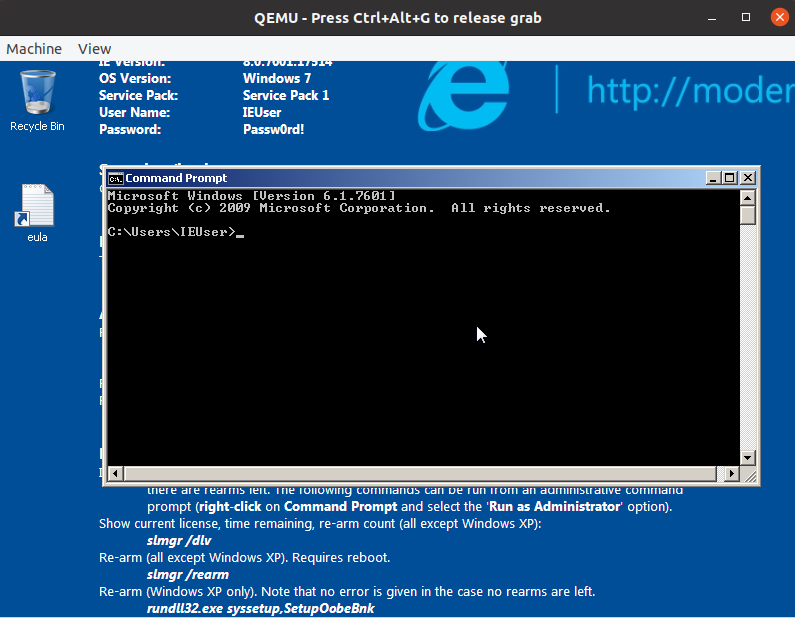
为了创建快照,在Panda中启动虚拟机并在客户环境中启动Windows命令行界面(要保证光标在界面上),如图所示:

此时,在QEMU命令行界面中使用savevm命令,保存虚拟机的状态,并创建一个快照。

我们可以启动这个快照,并且由于命令提示符在客户环境内,可以通过向机器发送按键keystrokes从外部控制客户机。

启动快照命令:-loadvm

./panda/build/i386-softmmu/panda-system-i386 -monitor stdio -show-cursor -m 8192 ./IE8_win7_disk1.qcow2 -loadvm 1

可以很快地启动快照客户环境

构建其他基础设置

记录样本程序的执行

上一步已设置了一个合适的快照,接下来要创建将应用程序发送到 VM 并在 VM 内启动应用程序的结构。

  • 方法:将样本转换为 .iso 文件,将这个 .iso 文件挂载到我们的虚拟机中,然后指示虚拟机从盒子外部抓取其 cd-rom 中的文件并将其作为应用程序启动。

我们将向客户机发送按键,这将触发命令提示符中的以下命令

copy D:\\sample C:\\Users\\IEUser\\Desktop\\sample.exe
start C:\\Users\\IEUser\\Desktop\\sample.exe

使用以下python脚本执行这个过程:

# -*- coding: utf-8 -*-  
#vm_record.py
import os
import sys
import time
import subprocess
import argparse
import string
import shutil

# 参数
PANDA_BASE = os.path.join(os.getcwd(), "panda")
PANDA_x86 = os.path.join(PANDA_BASE, "build", "i386-softmmu", "panda-system-i386")
IMG_PATH = os.path.join(os.getcwd(), "IE8_win7_disk1.qcow2")

PANDA_flags = [
"-monitor", "stdio",
"-show-cursor",
"-m", "8192",
"-loadvm", "1",
IMG_PATH
]
TIME_TO_EXECUTE = 20

def log_info(msg):
print("[+] %s"%(msg))

def log_exit(msg):
print("[-] %s"%(msg))
exit(0)

def guest_type(s, p):
#cmd
#cmd命令转换
keymap = {
'-': 'minus',
'=': 'equal',
'[': 'bracket_left',
']': 'bracket_right',
';': 'semicolon',
'\'': 'apostrophe',
'\\': 'backslash',
',': 'comma',
'.': 'dot',
'/': 'slash',
'*': 'asterisk',
' ': 'spc',
'_': 'shift-minus',
'+': 'shift-equal',
'{': 'shift-bracket_left',
'}': 'shift-bracket_right',
':': 'shift-semicolon',
'"': 'shift-apostrophe',
'|': 'shift-backslash',
'<': 'shift-comma',
'>': 'shift-dot',
'?': 'shift-slash',
'\n': 'ret',
}

for c in s:
if c in string.ascii_uppercase:
key = 'shift-' + c.lower()
else:
key = keymap.get(c, c)
str_sendkey = "sendkey "+"%s"%(key)+"\n"
p.stdin.write(str_sendkey.encode())
p.stdin.flush()
time.sleep(.5)

def record_execution(sample, recording_time):
#执行记录程序
log_info("Recording execution %s"%(sample))
log_info("Recording for %d seconds"%(recording_time))

new_sample = "sample"
shutil.copy(sample, new_sample)

#创建目标程序对应的ISO文件
cmd = []
cmd.append("/usr/bin/genisoimage")
cmd.append("-iso-level")
cmd.append("4")
cmd.append("-l")
cmd.append("-R")
cmd.append("-J")
cmd.append("-o")
cmd.append("sample.iso")
cmd.append(new_sample)

try:
subprocess.check_call(cmd)
log_info("Made an iso file for the sample")
except Exception:
print(traceback.format_exc())
print(sys.exc_info()[0])
log_exit("Could not make any iso file for the sample")

#运行Panda
cmd = []
cmd.append(PANDA_x86)
for flag in PANDA_flags:
cmd.append(flag)
panda_stdout_path = "panda.stdout"
panda_stderr_path = "panda.stderr"
panda_stdout = open(panda_stdout_path, 'w+')
panda_stderr = open(panda_stderr_path, 'w+')

log_info("Executing command: %s"%(" ".join(cmd)))
try:
p = subprocess.Popen(cmd,
stdin = subprocess.PIPE,
stdout = panda_stdout,
stderr = panda_stderr)
except Exception as e:
print(e)

str_mark = "MARK\n"
p.stdin.write(str_mark.encode())
p.stdin.flush()
# 检查虚拟机何时准备好让我们与之交互
f_out = open(panda_stdout_path, "r")
while True:
content = f_out.read()
if "M" in content:
log_info("VM started")
break
f_out.seek(0)
time.sleep(0.5)

time.sleep(1)

# 配置 QEMU,以便将 sample.iso 文件挂载到 cdrom 中。
p.stdin.write(b"change ide1-cd0 sample.iso\n")
p.stdin.flush()
time.sleep(5)

# 在win7中,cdrom会打开一个窗口,使用esc可以关闭
p.stdin.write(b"sendkey esc\n")
p.stdin.flush()
# 向客户系统中发送命令(通过qemu向刚刚打开的cmd窗口输送)
time.sleep(5)
calc_cmd = "calc\n"
guest_type(calc_cmd, p)
time.sleep(5)
copy_cmd = " copy D:\\sample C:\\Users\\IEUser\\Desktop\\sample.exe\n"
guest_type(copy_cmd, p)
time.sleep(5)

# 注意这里并没有立即执行程序(没有添加\n),因为想在之后的begin_record后再执行它
start_cmd = "start C:\\Users\\IEUser\\Desktop\\sample.exe"
guest_type(start_cmd, p)

# 执行程序前,开始记录
p.stdin.write(b"begin_record sample\n")
p.stdin.flush()
# 发送\n执行刚才输入的命令(执行sample.exe程序)
guest_type("\n", p)

log_info("Started recording and executed the sample in the guest machine")
log_info("Recording for: %d seconds"%(TIME_TO_EXECUTE))
time.sleep(TIME_TO_EXECUTE)

# 结束记录
p.stdin.write(b"end_record\n")
p.stdin.flush()
# 向qemu发送'q'退出环境
p.stdin.write(b"q\n")
p.stdin.flush()
log_info("Recording is over, shutting the VM down")
p.stdin.write(b"q\n")
p.stdin.flush()
time.sleep(3)

while True:
poll = p.poll()
if poll == None:
time.sleep(1)
else:
log_info("VM is shut down")
break

log_info("Finished recording the sample execution")

if __name__ == "__main__":
parser = argparse.ArgumentParser()
parser.add_argument(
"-sample",
help = "The sample to executed",
required = True)

parser.add_argument(
"-time",
help = "The number of seconds to record an execution",
type = int,
default = 25)

args = parser.parse_args(args = sys.argv[1:])
record_execution(args.sample, args.time)

这里遇到一个问题,在p.stdin.write后,如果不使用flush(),会导致qemu接收不到输入(原文中并没有使用)

脚本使用方式:其中-sample参数提供主机系统上将在录制期间执行的样本的路径。

$ python3 vm_record.py -sample ./sample.exe
[+] Recording execution ./sample.exe
[+] Recording for 25 seconds
Warning: Creating ISO-9660:1999 (version 2) filesystem.
Warning: ISO-9660 filenames longer than 31 may cause buffer overflows in the OS.
Total translation table size: 0
Total rockridge attributes bytes: 247
Total directory bytes: 0
Path table size(bytes): 10
Max brk space used 0
241 extents written (0 MB)
[+] Made an iso file for the sample
[+] Executing command: /root/Desktop/panda/build/i386-softmmu/panda-system-i386 -monitor stdio -show-cursor -m 8192 -loadvm 1 /root/Desktop/IE8_win7_disk1.qcow2
[+] VM started
[+] Started recording and executed the sample in the guest machine
[+] Recording for: 20 seconds
[+] Recording is over, shutting the VM down
[+] VM is shut down
[+] Finished recording the sample execution

重放回放(Replaying a recording

# -*- coding: utf-8 -*-  
#vm_replay.py
import os
import sys
import time
import subprocess
import argparse
import string
import shutil

# Configs
PANDA_BASE = os.path.join(os.getcwd(), "panda")
PANDA_x86 = os.path.join(PANDA_BASE, "build", "i386-softmmu", "panda-system-i386")
IMG_PATH = os.path.join(os.getcwd(), "IE8_win7_disk1.qcow2")

PANDA_flags = [
"-monitor", "stdio",
"-show-cursor",
"-m", "8192",
]

# The PADNA plugins we would like to use
PANDA_plugins = []

def log_info(msg):
print("[+] %s"%(msg))

def log_exit(msg):
print("[-] %s"%(msg))
exit(0)

def replay_recording(snapshot_name):
'''
Replays a recording
'''
log_info("Replaying %s"%(snapshot_name))

# Launch PANDA
cmd = []
cmd.append(PANDA_x86)
cmd.append("-replay")
cmd.append(snapshot_name)

for flag in PANDA_flags:
cmd.append(flag)

for plugin_cmdline in PANDA_plugins:
cmd.append(plugin_cmdline)

# Output files
panda_stdout_path = "replay_panda.stdout"
panda_stderr_path = "replay_panda.stderr"
panda_stdout = open(panda_stdout_path, 'w+')
panda_stderr = open(panda_stderr_path, 'w+')

log_info("Launching replay %s"%(" ".join(cmd)))
try:
p = subprocess.Popen(
" ".join(cmd),
shell=True,
stdout = panda_stdout,
stderr = panda_stderr,
preexec_fn = os.setsid)
except:
log_exit("Could not complete replay")

log_info("Replay launched")

while True:
poll = p.poll()
if poll == None:
time.sleep(1)
else:
log_info("Replaying finished")
break

log_info("Analysis process finished, exiting")

if __name__ == "__main__":
parser = argparse.ArgumentParser()
parser.add_argument(
"-recording",
help = "The name of the recording to replay",
required = True)

args = parser.parse_args(args = sys.argv[1:])
replay_recording(args.recording)

通过以下方式使用此脚本,其中-recording指定我们要重播的录音的名称

$ python3 vm_replay.py -recording sample 
[+] Replaying sample
[+] Launching replay /root/Desktop/panda/build/i386-softmmu/panda-system-i386 -replay sample -monitor stdio -show-cursor -m 8192
[+] Replay launched
[+] Replaying finished
[+] Analysis process finished, exiting

使用Panda插件

上面创建了一个简单地框架,可以在Panda中使用记录(record)和回放(replay)程序。但绝大多数时候,我们希望能研究自己给定的程序。

监控系统的进程

第一步我们选择使用Panda的两个虚拟机自省(virtual machine introspection (VMI))插件osiwintrospection ,来监控在系统上执行的进程。

  • 虚拟机自省(VMI):主要的功能是从虚拟机外面 VMM层观察虚拟机,检查虚拟机的状态。

这样做,与在客户系统中放置特定于分析的工件(例如分析驱动程序)相比,客户系统保持相对透明。缺点是必须纯粹通过观察内存来推断操作系统级别的抽象,并且不能使用正常的 Windows 提供的 API 来执行此操作。

扩展vm_replay.py脚本,在回放(replay)的时候启动插件。

# -*- coding: utf-8 -*-  
#vm_replay.py
import os
import sys
import time
import subprocess
import argparse
import string
import shutil

# 参数
PANDA_BASE = os.path.join(os.getcwd(), "panda")
PANDA_x86 = os.path.join(PANDA_BASE, "build", "i386-softmmu", "panda-system-i386")
IMG_PATH = os.path.join(os.getcwd(), "IE8_win7_disk1.qcow2")
PANDA_flags = [
"-monitor", "stdio",
"-show-cursor",
"-m", "8192",
]

# 使用的Panda插件
PANDA_plugins = [
"-panda osi -os windows-32-7sp1 -panda wintrospection -panda osi_test"
]

def log_info(msg):
print("[+] %s"%(msg))

def log_exit(msg):
print("[-] %s"%(msg))
exit(0)

def replay_recording(snapshot_name):
#回放

log_info("Replaying %s"%(snapshot_name))

# 运行Panda
cmd = []
cmd.append(PANDA_x86)
cmd.append("-replay")
cmd.append(snapshot_name)

for flag in PANDA_flags:
cmd.append(flag)

for plugin_cmdline in PANDA_plugins:
cmd.append(plugin_cmdline)

# 输出qemu运行信息
panda_stdout_path = "replay_panda.stdout"
panda_stderr_path = "replay_panda.stderr"
panda_stdout = open(panda_stdout_path, 'w+')
panda_stderr = open(panda_stderr_path, 'w+')

log_info("Launching replay %s"%(" ".join(cmd)))
try:
p = subprocess.Popen(
" ".join(cmd),
shell=True,
stdout = panda_stdout,
stderr = panda_stderr,
preexec_fn = os.setsid)
except:
log_exit("Could not complete replay")

log_info("Replay launched")

while True:
poll = p.poll()
if poll == None:
time.sleep(1)
else:
log_info("Replaying finished")
break

log_info("Analysis process finished, exiting")

if __name__ == "__main__":
parser = argparse.ArgumentParser()
parser.add_argument(
"-recording",
help = "The name of the recording to replay",
required = True)
args = parser.parse_args(args = sys.argv[1:])
replay_recording(args.recording)

这里遇到两个坑。

  • 一是对于osi插件的指定操作系统参数-os,现版本其README代码里的描述有差异,开始的时候只看了README,结果一直报错不通过os检查。后来看了代码才发现问题:按照README一开始使用的windows-32-7,但看了代码发现应该使用windows-32-7sp1
  • 二是在网上的教程中,作者使用的是win7x86intro ,但这个插件在现版本已不能使用(没了),因此我这里选择使用wintrospection 这一插件替代。

运行回放:

$ python3 vm_replay.py -recording sample   
[+] Replaying sample
[+] Launching replay /root/Desktop/panda/build/i386-softmmu/panda-system-i386 -replay sample -monitor stdio -show-cursor -m 8192 -panda osi -os windows-32-7sp1 -panda wintrospection -panda osi_test
[+] Replay launched
[+] Replaying finished
[+] Analysis process finished, exiting

之后在输出生产的replay_panda.stdout中可以看到系统状态,包括系统上执行的所有进程、当前执行进程加载的 DLL 以及内核模块。但这个文件会非常的大,这里我生成的就有341M,因为在每次发生上下文切换时都会打印系统状态。部分内容如下:

......
......
Current process: csrss.exe PID:344 PPID:324

Process list (48 procs):
smss.exe 220 4
csrss.exe 296 288
wininit.exe 332 288
csrss.exe 344 324
winlogon.exe 372 324
services.exe 428 332
lsass.exe 444 332
lsm.exe 452 332
svchost.exe 560 428
svchost.exe 632 428
svchost.exe 680 428
svchost.exe 808 428
svchost.exe 840 428
svchost.exe 948 428
explorer.exe 1100 1092
dwm.exe 1152 808
svchost.exe 1208 428
spoolsv.exe 1404 428
taskhost.exe 1448 428
svchost.exe 1476 428
vmicsvc.exe 1624 428
vmicsvc.exe 1644 428
vmicsvc.exe 1688 428
vmicsvc.exe 1720 428
vmicsvc.exe 1748 428
svchost.exe 1784 428
cygrunsrv.exe 1920 428
wlms.exe 1976 428
cygrunsrv.exe 624 1920
conhost.exe 736 296
sshd.exe 892 624
sppsvc.exe 1064 428
SearchIndexer. 1244 428
svchost.exe 1824 428
SearchProtocol 2104 1244
SearchFilterHo 2164 1244
cmd.exe 2368 1100
conhost.exe 2376 344
svchost.exe 2560 428
svchost.exe 2660 428
calc.exe 2792 2368
taskhost.exe 2988 428
CompatTelRunne 3080 428
conhost.exe 3088 296
sample.exe 3180 2368
WmiPrvSE.exe 3236 560
DeviceDisplayO 3292 560
System 4 0

-------------------------------------------------

Dynamic libraries list (18 libs):
0x49e30000 20480 csrss.exe C:\Windows\system32\csrss.exe
0x76e60000 1314816 ntdll.dll C:\Windows\SYSTEM32\ntdll.dll
0x74fc0000 53248 CSRSRV.dll C:\Windows\system32\CSRSRV.dll
0x74fb0000 57344 basesrv.DLL C:\Windows\system32\basesrv.DLL
0x74f80000 180224 winsrv.DLL C:\Windows\system32\winsrv.DLL
0x752b0000 823296 USER32.dll C:\Windows\system32\USER32.dll
0x75490000 319488 GDI32.dll C:\Windows\system32\GDI32.dll
0x75960000 868352 kernel32.dll C:\Windows\SYSTEM32\kernel32.dll
0x75190000 307200 KERNELBASE.dll C:\Windows\system32\KERNELBASE.dll
0x75480000 40960 LPK.dll C:\Windows\system32\LPK.dll
0x76ff0000 643072 USP10.dll C:\Windows\system32\USP10.dll
0x75830000 704512 msvcrt.dll C:\Windows\system32\msvcrt.dll
0x74f70000 36864 sxssrv.DLL C:\Windows\system32\sxssrv.DLL
0x74ec0000 389120 sxs.dll C:\Windows\system32\sxs.dll
0x75780000 663552 RPCRT4.dll C:\Windows\system32\RPCRT4.dll
0x74eb0000 49152 CRYPTBASE.dll C:\Windows\system32\CRYPTBASE.dll
0x75ad0000 659456 ADVAPI32.dll C:\Windows\system32\ADVAPI32.dll
0x77090000 102400 sechost.dll C:\Windows\SYSTEM32\sechost.dll

Kernel module list (135 modules):
0x82816000 4235264 ntoskrnl.exe \SystemRoot\system32\ntoskrnl.exe
0x82c20000 225280 hal.dll \SystemRoot\system32\halmacpi.dll
0x80bd3000 32768 kdcom.dll \SystemRoot\system32\kdcom.dll
0x8b40d000 544768 mcupdate.dll \SystemRoot\system32\mcupdate_GenuineIntel.dll
0x8b492000 69632 PSHED.dll \SystemRoot\system32\PSHED.dll
0x8b4a3000 32768 BOOTVID.dll \SystemRoot\system32\BOOTVID.dll
......
......

可以看到,客户环境的calc.exe以及从本地传过去的sample.exe都得到了运行。

总结

通过本次实验,了解了Panda的记录、回放过程,完成了记录、回放对应的自动化脚本的编写,并简单使用了Panda插件。在未向客户系统预存代码的情况下,将目标程序在系统中运行,使我们能够对我们选择的给定应用程序的系统进行舒适的分析。

文章作者: HotSpurzzZ
文章链接: http://example.com/2022/04/04/Pande基础使用/
版权声明: 本博客所有文章除特别声明外,均采用 CC BY-NC-SA 4.0 许可协议。转载请注明来自 HotSpurzzZ